

Inspect Desktop Update Guide

1st October 2026
Introduction
This document provides step-by-step instructions for updating Inspect Desktop in both Test and Production environments using the ClickOnce installation package. The purpose of this guide is to ensure the update process is completed safely and consistently while minimizing the risk of data loss or installation issues.
It covers the required pre-update backups, downloading and extracting the installation package, copying the installation files to the correct location, unblocking downloaded files, and completing the update on each workstation.
Important: Complete and verify the update in the Test environment before applying the same update to the Production environment. |
Inspect Desktop Update Procedure
Before installing a new version of Inspect Desktop, complete the following steps for the environment being updated.
1. Complete Required Backups
Before proceeding with the update:
1. Upload all inspections from the mobile devices to the server.
2. Back up the relevant Inspect database for the Test or Production environment.
3. Back up the Inspect data folder located at:
\\SERVER_NAME\ANY_FOLDER_NAME_INSPECT\Data\
Example:
\\ZOODATA_001\INSPECT\Data\
These backups ensure that the current environment can be restored if required.
2. Download the Installation Package
Open the provided download link and select “Download this file to your device” in the top-left corner.
The downloaded ZIP file will contain a folder named according to the Inspect Desktop version number. Extract the ZIP file and open the version-number folder.
3. Copy the Installation Files
Copy the contents of the version-number folder into the appropriate InstallationFiles directory for the environment being updated:
\\SERVER_NAME\ANY_FOLDER_NAME_INSPECT\InstallationFiles\
Example:
\\ZOODATA_001\Inspect\Test\InstallationFiles\
\\ZOODATA_001\Inspect\Production\InstallationFiles\
Note: Do not copy the version-number folder itself. Only the files and folders contained within it should be copied into the InstallationFiles folder. |
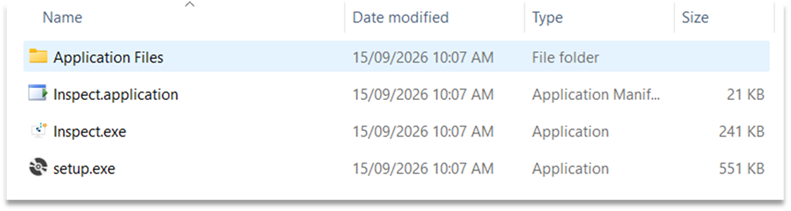
Figure 1: Content of the version-number folder
4. Unblock the Installation Files
Because the installation files were downloaded from the Internet, Microsoft Defender SmartScreen may display a security warning when running setup.exe.
To unblock the downloaded files, open PowerShell from within the InstallationFiles folder and run the following command:
Get-ChildItem -Recurse | Unblock-File
This removes the Internet download security flag from the installation files and helps prevent SmartScreen warnings during installation.
5. Run Inspect Desktop Twice
After the new version has been placed in the InstallationFiles folder, run the relevant Inspect Desktop instance on each required machine twice:
1. First run - Inspect Desktop detects the new version.
2. Close Inspect Desktop.
3. Second run - Inspect Desktop applies and starts the updated version.
6. Verify the Update
After the update is complete:
- Confirm that Inspect Desktop opens successfully.
- Confirm that the expected version is installed.
- Verify that the application is functioning correctly.
- For Production updates, confirm that testing has been successfully completed in the Test environment before proceeding.
Support - If you experience any issues during the update process, please contact inspectsupport@zoodata.com.au for assistance.